Part1 Configure Employee Expenses Approvals in Oracle Fusion BPM
BPM means Business Process Management. BPM is a complete set of tools for creating, executing, and optimizing business processes in Oracle Fusion. We designs the approval processes in BPM. In this post , I will show you the steps to configure Expenses approval in Oracle Fusion Through BPM.
Business Case :-
Case1. Expense Amount is less or Equal to 1000 and Business Unit is 'OU1' then Approval Notification will go to First Supervisor.
Case2. Expense Amount is greater then 1000 but less then or equal to 5000 and Business Unit is 'OU1' then Approval Notification will go to First 2 Supervisor's.
Case3. Expense Amount is greater then 5000 and Business Unit is 'OU1' then Approval Notification will go to First 3 Supervisor's and then go to Plant Head for the approval.
Expenses Approval in Oracle Fusion BPM
Step1:- Select the 'FinExmWorkflowExpenseApproval' task from the BPM worklist.
Then Click on 'Rules' Tab from the Right Side.

Then Click on 'Rules' Tab from the Right Side.
Step2:- This is the Rules approval process and will do un-check all others approval rule except the below approval rule like 'Expense Report Del' and 'Expense' Report Approver'.
Click on the Expense Report Approver rule.

Click on the Expense Report Approver rule.
Step3:- Click on the Expense Report approvers rule as below.

Step4:- Here we will create Conditions based on our Business requirement.
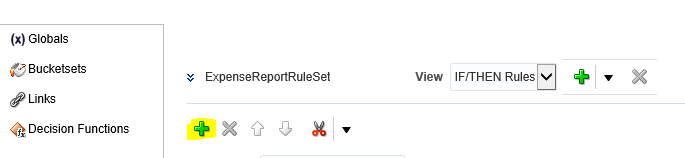
Step5:- Here below this is the Frist approval Rule I will create.
Rule Name: level 1 approval.

Step6:- In the If condition select the Search Icon to create Conditions.
We have already all the variables based on the expense report to create conditions.
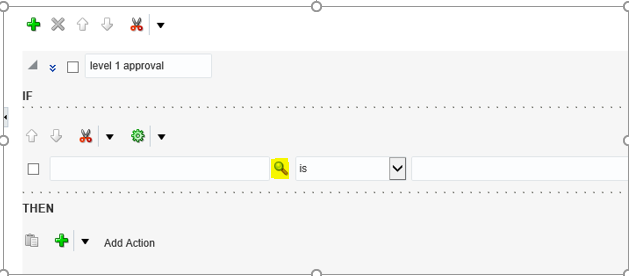
Step7:- Go to under Expense Report folder as below.

Step8:- Under Expense Report Select the Business Unit Column.

Step9:- This is the First Condition created for 'OU1' then click on the icon in right side and select 'Simple Test' option to create Second condition for Expense Amount.

Step10:- Go to under Expense Report folder as below and then Select Expense Report Total.

Step11:- This is the First Rule Created with two Conditions as below.

Step 12:- Now Click on the '+' icon under THEN option to create Approval action item.
Step13:- Select the Appropriate Approver Type as per your Business need. Here we will select Supervisory

Step14:- This is the Supervisory approval Action created for level1.

This BPM configuration is quite long so I will share rest of the steps related to this I-Expense Approval BPM configuration in the next Post. Please refer BPM Expense Approval Part2 for rest of the Steps.
Configure Employee Expenses Approvals in Oracle Fusion BPM


