Showing posts with label How to Extend Standard OAF Page Layout. Show all posts

Tuesday, 12 June 2018

Part 2: How to Create a new Region in standard OAF Page. How to Extend Standard OAF Page Layout

Part 2: How to Create a new Region in standard OAF Page. How to Extend Standard OAF Page Layout

 
This is the Second part for the Extension of OAF Page Layout. In this post , we will merge custom region in the standard OAF Page. With this approach , We can do changes in the Standard OAF page Design and Layout also.
 
To find the Part ! , you can refer the Below URL:


How to Create a new Region in standard OAF Page

In this Second Post , We will create Application Module (AM) and then Attach This AM to the Custom  region which is created in the First part of this Post.
 
Step12:- In this Step , We will Create the Application Module. To find the rest of the Steps 1 to 11 please refer the Part of this Post.
 
How to Create a new Region in standard OAF Page. How to Extend Standard OAF Page Layout


Step13:- Creating Application Module
Package : oracle.apps.xxap.pageextend.server
Name : PageExtendAM
 
How to Create a new Region in standard OAF Page. How to Extend Standard OAF Page Layout
 
 
Step14:- Now here in this Step , click on the PageExtendRG Structure and then in the Properties of this Region set the Application module created in the Previous Step.
 
Application module : oracle.apps.xxap.pageextend.server.PageExtendAM
How to Create a new Region in standard OAF Page. How to Extend Standard OAF Page Layout
 
Now our custom Region is created successfully.
 
Step15:- In the Next Step , we need to move this Custom region and its files to the Java_Top directory and import with the JPX importer Script.
 
 
Step16:- Once our Files moved to Java_Top then we need to go to the Oracle Application OAF Page, In which we want to add this region.
 
Step17:- I have choose Workflow notifications Page for I-Expense.
 
Step18:- Now go to this Page , and Then Click on the Personalization Link.
 
Step19:- Go to the Stack Layout of this Region and Create a New Item as below
 
How to Create a new Region in standard OAF Page. How to Extend Standard OAF Page Layout


 Step20:- We will create the Item Style as a 'Stack Layout'
Level will be Site.
 
Given an unique Id of this Region
Most important part of this Item is 'Extends' Column , in this field , you will enter the Path of your Region which you have created in the J Developer (
oracle.apps.xap.pageextend.webui.PageExtendRG) This is the Path in the J Developer but in the Application the Path will be same but we will not use '.' . We will use '/'.
Extends : /oracle/apps/xxap/pageextend/webui/PageExtendRG

How to Create a new Region in standard OAF Page. How to Extend Standard OAF Page Layout
 
After this your Page Extension has been completed and you can see the changes/ custom region in OAF Page.

Monday, 11 June 2018

Part 1: How to Create a new Region in standard OAF Page. How to Extend Standard OAF Page Layout

How to Create a new Region in standard OAF Page. How to Extend Standard OAF Page Layout

In this Post, We will discuss how we can do extension in the Standard OAF Page Layout. How We can  Display new Custom Regions in the Standard OAF Page Layout. We have already Discussed in the Previous Post for OAF VO Extensions, Controller Extensions But we have not discussed yet about Standard OAF Page Layout Extension. We often need in Our Business Requirment to display the new fields in the OAF page , or to Merge New region in the Standard OAF Page. In this Post , We will try to Create a New Region in the Standard OAF Page. This post helps to Extend Standard OAF Page Layout.
 

How to Extend Standard OAF Page Layout

Step1:- First we will create a new Custom Region in the JDeveloper.
 
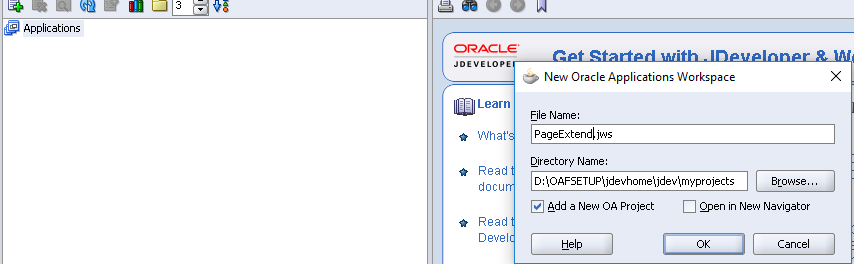
Step2:- Go to J-Developer and create a New Workspace and Project to create a New Region for the Standard OAF Page.
 
Create a New workspace.
 
How to Create a new Region in standard OAF Page. How to Extend Standard OAF Page Layout
 
Step3:- Create a New Project
 
Project Name : PageExtend
Default Package: oracle.apps.xxap.pageextend
 
How to Create a new Region in standard OAF Page. How to Extend Standard OAF Page Layout
 
Step4:- Create a New Region As below.
 
How to Create a new Region in standard OAF Page. How to Extend Standard OAF Page Layout
 
Step5:- Creating New Region
Name : PageExtendRG
Style:- Stack Layout
We have to select the Stack Layout style for the Region when we will try to merge the Custom region in Standard OAF Page.
 
How to Create a new Region in standard OAF Page. How to Extend Standard OAF Page Layout


Step6:- PageExtendRG Page structure has been created. Now we will create another regions.
Right Click on PageExtendRG Structure and select New and Then Select the Region Option as below


How to Create a new Region in standard OAF Page. How to Extend Standard OAF Page Layout


Step7:- As below Region1 has been create and Region Style we select 'Header'

How to Create a new Region in standard OAF Page. How to Extend Standard OAF Page Layout


Step8:- Now we create new region again same like previous Step but this time we will right click on region1 and then Select new and select Region Option and region will be created as below
This Region Style Will Be Message Component Layout.

How to Create a new Region in standard OAF Page. How to Extend Standard OAF Page Layout


Step9:-
How to Create a new Region in standard OAF Page. How to Extend Standard OAF Page Layout


Step10:- Now we will create new Text Item. Right Click on Region2 and Then Select New and Choose MessageTextInput.


Step11:-New Text Item has been created as Below 'item1'
How to Create a new Region in standard OAF Page. How to Extend Standard OAF Page Layout


Rest of the Steps will be posted Shortly

Contact us for any Collaboration, Project Support & On Job Support Work

Name

Email *

Message *