Showing posts with label I-Expense Approvals In Oracle Fusion BPM. Show all posts

Sunday, 11 March 2018

Part2 Configure Employee I Expenses Approvals in Oracle Fusion BPM

Part2 Configure Employee I Expenses Approvals in Oracle Fusion BPM

BPM means Business Process Management. BPM is a complete set of tools for creating, executing, and optimizing business processes in Oracle Fusion. We designs the approval processes in BPM. In this post , I will show you the steps to configure Expenses approval in Oracle Fusion Through BPM.
 
Please go through The First Post BPM Expense Approval Part1 before starting this post.
 
 
Step14:- This is the Supervisory approval Action created for level1.
As per my Business case if Expense Amount is less or Equal to 1000 and Business Unit is 'OU1' then Approval Notification will go to First Supervisor so I have put Number of Levels '1'
 
Response Type:- Required if you want to get the response from the Manger and FYI if you don't want to get the response only for the acknowledgement.
 
Starting Participant:- This is very important Field in this setup. It gives you flexibility to start your approval process from where.
 
Top Participant:- Here you need to mentioned the name of that Person who remains top in the Supervisory Hierarchy like 'CEO'.
 
Keep other things remain default.
 
Part2 Configure Employee I Expenses Approvals in Oracle Fusion BPM


Step15:- Click on The Starting Participant Search Icon and select the  appropriate Value from which you want to start your approval Process.
 
Here in this case , I want to start the approval process from that person manager who will create or submit the expense report.
 
So Select 'Get Manger' and then  List Builder ' Supervisory' because we are using 'Supervisor' Hierarchy.
 
Reference User:- Here select the appropriate Value from which you want to start your approval Process. I am using the 'Task.creater' .
Then Click OK.
 
Part2 Configure Employee I Expenses Approvals in Oracle Fusion BPM
 
 
Step16:- Click on The Top Participant Search Icon and select the  name of that Person who remains top in the Supervisory Hierarchy like 'CEO'.
 
Part2 Configure Employee I Expenses Approvals in Oracle Fusion BPM
 
Step17:- This is the First Rule create After the selecting all the values above.
Part2 Configure Employee I Expenses Approvals in Oracle Fusion BPM
 
 
Step18:- Now I will create Rule for the Second Business Condition 'Expense Amount is greater then 1000 but less then or equal to 5000 and Business Unit is 'OU1' then Approval Notification will go to First 2 Supervisor's'.
 
Now Again Click on the '+' icon in Header Level to create Another.
 
Part2 Configure Employee I Expenses Approvals in Oracle Fusion BPM
 
 
Step19:- This is the Second Rule create with Below Conditions.
 
Part2 Configure Employee I Expenses Approvals in Oracle Fusion BPM

Step 20:-Now Click on the '+' icon under THEN option to create Approval action item.

Select the Appropriate Approver Type as per your Business need. Here we will select Supervisory


Step 21:-
As per my Business case if Expense Amount is greater then 1000 but less then or equal to 5000 and Business Unit is 'OU1' then Approval Notification will go to First 2 Supervisor's. so I have put Number of Levels '2'
 
All other values will same as First Rule.
 
Part2 Configure Employee I Expenses Approvals in Oracle Fusion BPM
 
 
Step22:-
Now I will create Rule for the Second Business Condition 'Expense Amount is greater then 5000 and Business Unit is 'OU1' then Approval Notification will go to First 3 Supervisor's and then go to Plant Head for the approval'.
 
For this Business Condition we will first Create 'Approval Group'.
Save your all the Work and First create Approval Group.


Step23:- Creating Approval Group

In the BPM worklist , You will see the Approval Group Option in the Top right side of the Screen. Select this Button to Create Approval Group for the Plant Head.


Step24:- Give the Name of approval Group 'PANT HEAD' and Click on the '+' icon to add the Person in this Approval Group.
Part2 Configure Employee I Expenses Approvals in Oracle Fusion BPM
 
 
Step25:- Select that User , who is a Plant Head.


Step26:- My approval group has been created fro the Plant Head. Now I will create Rule for the Second Business Condition 'Expense Amount is greater then  5000 and Business Unit is 'OU1' then Approval Notification will go to First 3 Supervisor's'  and then go to Plant Head for the approval'.
 
Now Again Click on the '+' icon in Header Level to create Another rule.
 
Rule Name: level 3 approver.
Conditions I have created as below.
 
Part2 Configure Employee I Expenses Approvals in Oracle Fusion BPM


Step 27:- Now Click on the '+' icon under THEN option to create Approval action item.

Select the Appropriate Approver Type as per your Business need. Here we will select Supervisory
 
Part2 Configure Employee I Expenses Approvals in Oracle Fusion BPM
Step 28:-
As per my Business case if Expense Amount is greater then 5000 and Business Unit is 'OU1' then Approval Notification will go to First 3 Supervisor's. so I have put Number of Levels '3'
 
All other values will same as First Rule.
Part2 Configure Employee I Expenses Approvals in Oracle Fusion BPM
 
 
Step29:- Now Click on the '+' icon under THEN option to create Approval action item.

Select the Appropriate Approver Type as per your Business need. Here we will select 'Approval Group'
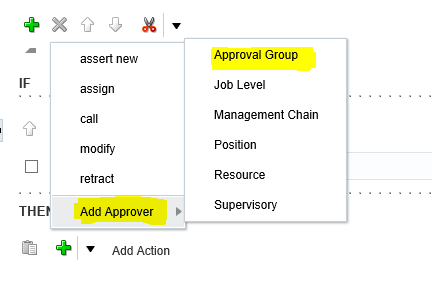
 
 Step 30:- Select the Approval Group 'Plant Head' created in previous steps in this approval type.
Now all the setups has been completed as per our Test business case.
Part2 Configure Employee I Expenses Approvals in Oracle Fusion BPM
 
If you want to Learn Oracle Fusion You can go to Fusion Learning Tutorial
If you want to Learn Oracle Application Framework (OAF) You can go to OAF Learning Tutorial
 
 
Part2 Configure Employee I Expenses Approvals in Oracle Fusion BPM
 

Oracle Fusion BPM Setups Detail Discussion

Oracle Fusion BPM Setups Detail Discussion

I hope you have gone through my previous BPM posts related to its introduction and discussion about its BPM tasks if not then I would recommend to go through first BPM Configuration Detail Discussion before starting this BPM setups post. In this post I will show you the setup steps to Configure BPM in Oracle fusion. BPM setups are more similar like AME in Oracle apps. In Fusion BPM oracle has given us standard approval tasks for most of the Business processes. We just need to create conditions in these tasks to implement these approval hierarchy in Oracle Fusion.
 
In this example I will took an example of any standard Oracle fusion BPM task , in which I will show you the setups steps.
 

Step1:- BPM Tasks

Select any one of the Task in the BPM worklist and then in the right side you will get those tasks and Rule tab.
Oracle Fusion BPM Setups Detail Discussion
 

Step2:- BPM Tasks And Rule

We can see two tabs 'Task' & 'Rules' for each BPM task in the BPM worklist.
 
Here we can set some properties on task level. We can set the person to which we want to Notify if some thing wrong in the approval process of this Task. 
 
We can set other options like 'Allowing other things in the task'.
Oracle Fusion BPM Setups Detail Discussion
 
 
Step3:- Click on the approval Groups and you can create your custom approval groups to which you want to send the approval notifications in the BPM rules and once you created this Approval Group then you can use under approval rules.
 
Oracle Fusion BPM Setups Detail Discussion


Step 3:- BPM Rules.

We can see the Full Approval path for an particular BPM task in the 'Rules' Tab. Here Oracle fusion has already given so many rules in the Task to meet the Business requirement.
 
We can decide which rule we will use to configure our Business approval and then click on that business rules. We can also select and unselect the business rules which we want to use. We need to un-select those business rules which we don't want to use.
 
Oracle Fusion BPM Setups Detail Discussion


Step 4:- This is the window which will appear when you click on the rule of the task.
Click on '+' sign and it will create condition on this business rule.


This is the rule created after click on '+' sign.

Step5:-  You can see the Rule and If and Then condition automatically created under this rule.
You can create if conditions based on their business requirement's and in the Then condition you can create Approval types in the Then condition.

Oracle Fusion BPM Setups Detail Discussion

 
Step6:- These are the approval types you can select in your If condition and create your approval rules in that.
Oracle Fusion BPM Setups Detail Discussion


Oracle Fusion BPM Setups Detail Discussion

BPM Configuration Tasks Detail Discussion in Oracle Fusion

BPM Configuration Detail Discussion and Setups in Oracle Fusion

BPM is the tool uses in Oracle Fusion to create and maintain Business Approval Hierarchy. We can  implement our business rules in the BPM tool to configure approval hierarchy in the Fusion application. We can create n number of rules in this BPM tool and these will execute based on the conditions. One rule should work in one task at single time so we have to design these rules on that basis if more then one rule will execute it can chock the approval hierarchy. In this post we will discuss the BPM configuration in Detail and will also discuss the BPM setups in Oracle Fusion.


BPM Configuration

Step1:- Go to Navigator and Setup and Maintenance.
 
BPM Configuration Detail Discussion and Setups in Oracle Fusion
 
Step2:- Find the 'Manage Expense Approval Rule' in the find field of Setup and Maintenance.
You can see all the business approval tasks available in the BPM through this Function.
BPM Configuration Detail Discussion and Setups in Oracle Fusion


Step3:- BPM Worklist and Tool

This is the BPM worklist where we have the tasks of most of the business process in Oracle fusion like 'Invoice, Expense , Journal , Asset approval'
 
Here we configures the BPM rules to implement approval processes in the Fusion application. Oracle fusion has given the BPM tasks for most of the important business processes. This is the complete window where you can find , configure and crate new business approval rules in the existing business BPM Tasks. These all are the standard BPM tasks you cannot create a new custom tsk here.
 
In the Left hand side , You can see all the tasks like 'ActivityManagement' , 'BankAcctTransferApprovalErrorFyi' like that.
 
Here below I have highlighted the BPM approval task(FINApInvoiceApproval) for AP Invoice
 
BPM Configuration Detail Discussion and Setups in Oracle Fusion


Step4:- GL Journal Approval BPM Task

Here I have highlighted the GL Journal Approval BPM task.
 
BPM Configuration Detail Discussion and Setups in Oracle Fusion


Step5:- Expense Approval BPM Task

Here I have highlighted the expense report approval BPM task. 
BPM Configuration Detail Discussion and Setups in Oracle Fusion
 

 Step6:- Oracle Fusion Payment approval BPM Task.

Here is highlighted the  Oracle Fusion Payment approval BPM Task.
 
 
BPM Configuration Tasks Detail Discussion in Oracle Fusion
 
You can also find the other BPM tasks as per your business requirement. This is really an impressive and easy tool to configure the complex business structure in the BPM tasks and create approvals on that.
 
I will share the BPM setup steps in my next post BPM Setup in Oracle Fusion


BPM Configuration Tasks Detail Discussion in Oracle Fusion

Contact us for any Collaboration, Project Support & On Job Support Work

Name

Email *

Message *
