Showing posts with label 2 Way PO Matched Invoices in Oracle Fusion. Show all posts

Sunday, 18 March 2018

How To Create PO Matched Payables Credit Memo in Oracle Fusion

How To Create PO Matched Payables Credit Memo in Oracle Fusion

 
Credit memo is basically issued by the supplier. Suppose there are errors in the invoice sent to the customer or there is a problem with the shipment then this memo will be issued to decrease
the amount specified in the original invoice sent to the customer. here, the supplier balance will reduce.
 
Suppose You have Matched the Last Invoice with PO and now Supplier has send again the Credit memo to do the Alterations in the Invoice then in the same time you would also need to reduce the PO matched quantity with the Invoice so that You can create the PO matched Credit Memo shared by the Supplier to reduce the Received and PO Matched Qty with the Invoice.
 

How To Create PO Matched Payables Credit Memo in Oracle Fusion

 
Step1:- Create Invoice :

Navigator > Payables> Invoices > 
select Create Invoice From the Task List.
 
How To Create PO Matched Payables Credit Memo in Oracle Fusion
          .                                                                                    


How To Create PO Matched Payables Credit Memo in Oracle Fusion

Step2:- Enter the PO Number In the Identifying PO field
Enter the Invoice Number 
For Now Enter Any amount = -2, you will change it later                                                                                                                                     
How To Create PO Matched Payables Credit Memo in Oracle Fusion


Step3:- Add Invoice Lines to the Invoice.
Click on the Go (==>) icon, Next to the Match Invoice Lines box
How To Create PO Matched Payables Credit Memo in Oracle Fusion


Step4:-
In the Match Invoice Lines page:
Click on the checkbox of the ‘Match’ column of a specific line(s).Or, click the upper checkbox to select all lines.

When you will click on the Specific Line or Upper Check box then all the lines will be enable and it will shows the Line Quantity for the Purchase Order. You can enter the PO matched Qty for which you want to create this Invoice.
 
Note In the Credit Memo every thing will be Negative Because we are reversing the Invoice , PO Matched qty in the System.
How To Create PO Matched Payables Credit Memo in Oracle Fusion


Step5:-
Validate the invoice to make it complete.
Before you can pay or create accounting entries for any invoice, the Invoice must be validated.  Click on Validate under Invoice Actions.


How To Create PO Matched Payables Credit Memo in Oracle Fusion

Create 2 Way PO-Matched Invoices in Oracle Fusion

Create 2 Way PO-Matched Invoices in Oracle Fusion

If we want to reconcile the Supplier Invoice with the Purchase Order created for the Supplier , we can create a 2 Way PO-Matched Invoices in Oracle Fusion. This way we can match the PO with the shared Supplier Invoices. This way we can control the Supplier Invoices in the Oracle application.
 
In the 2 Way PO matching we did not Match Invoices with the PO receiving. We directly match the Invoices with Purchase Order created.
 
 
Create 2 Way PO-Matched Invoices in Oracle Fusion
 

Step1:- Create Invoice :


Navigator > Payables> Invoices > 
select Create Invoice From the Task List.
 
Create 2 Way PO-Matched Invoices in Oracle Fusion
          .                                                                                    


Create 2 Way PO-Matched Invoices in Oracle Fusion

Step2:- Enter the PO Number In the Identifying PO field
Enter the Invoice Number 
For Now Enter Any amount =2, you will change it later                                                                                                                                     

Create 2 Way PO-Matched Invoices in Oracle Fusion.


Step3:- Add Invoice Lines to the Invoice.
Click on the Go (==>) icon, Next to the Match Invoice Lines box 


Step4:-
In the Match Invoice Lines page:
Click on the checkbox of the ‘Match’ column of a specific line(s).Or, click the upper checkbox to select all lines.

When you will click on the Specific Line or Upper Check box then all the lines will be enable and it will shows the Line Quantity for the Purchase Order. You can enter the PO matched Qty for which you want to create this Invoice.

Create 2 Way PO-Matched Invoices in Oracle Fusion


Step5:-
Validate the invoice to make it complete.
Before you can pay or create accounting entries for any invoice, the Invoice must be validated.  Click on Validate under Invoice Actions.

Create 2 Way PO-Matched Invoices in Oracle Fusion
 

Friday, 2 March 2018

How to do the Adjustment to the Receivable Invoice in Oracle Fusion

How to do the Adjustment to the Receivable Invoice in Oracle Fusion

 
Hi Friends , in this post We will discuss how to do adjustments in the Receivable invoice in Oracle fusion. We will do step by step navigation to do Adjustments in the Receivable Invoice.
 
 
Step1:- Log in under a Billing Manager responsibility. 
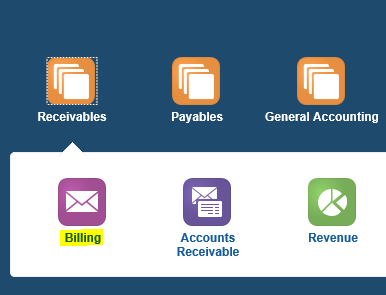
 Navigator: Receivables ==> Billing ==> Tasks/ Transactions/ Manage Transactions.
 
Adjustment to the Receivable Invoice in Oracle Fusion
 
 
Adjustment to the Receivable Invoice in Oracle Fusion
 
 
Step2:- Enter the Transactions Number against which you want to do the adjustment.
            Click on Search


    Click on Highlighted  Transaction Number
 Adjustment to the Receivable Invoice in Oracle Fusion
 
Step3:- Under Actions Button click on dropdown list Select Manage Adjustments

How to do the Adjustment to the Receivable Invoice in Oracle Fusion

 
Step4:- Click on Create + icon
 
 
Select the applicable fields to define the type of adjustment and amount. Submit                                                                                                 .                                                                                              Note: Common Adjustment types are: 
 Invoice: Apply the adjusted amount to the entire invoice
 Line: Apply the adjusted amount to the invoice lines.
Tax: Apply the adjusted amount to the tax amount.
How to do the Adjustment to the Receivable Invoice in Oracle Fusion
 
 
How to do the Adjustment to the Receivable Invoice in Oracle Fusion

Contact us for any Collaboration, Project Support & On Job Support Work

Name

Email *

Message *