Showing posts with label oracle fusion ess job. Show all posts

Wednesday, 7 March 2018

AR Period Close Process and Open Close Accounting Periods in Oracle Fusion

AR Period Close Process in Oracle Fusion

Period close process in oracle fusion is the process when we closes the month in Oracle Fusion application to stop doing any kind of transactions. Period is same like a month so when we move to next month similarly we move to next period in Oracle Fusion application and closes the previous period. Closing a period means , All the Transactions in that period has been freeze and Done and now no other transaction will be done in this period so we are closing this period or month for any transaction and any new transaction will be done in the next period.
 
In Fusion , Period close process is the same like EBS r12.
 
Step1 :Navigator-->Tools-->Schedule Process   
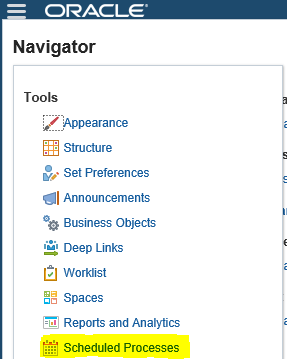
AR Period Close Process and Open Close Accounting Periods in Oracle Fusion


 Step2:-
Click on Schedule New Process
Type -Job ,
Name: LOV Search "Subledger Period Close Exceptions Report"
Choose & Click OK
 
AR Period Close Process and Open Close Accounting Periods in Oracle Fusion


Step3:-
Review the Output & Ensure all transactions are accounted and reports are showing as per expectation for the month. 
 
We need to correct the Transactions if we got in the report output then after that we can start Close Accounting Period Process.


Step4:- Navigate to the Open/Close Accounting Periods.

Receivables >Task>Receivables Periods>Manage Accounting Periods
 
AR Period Close Process and Open Close Accounting Periods in Oracle Fusion
 

Step5:- Open/Close Accounting Periods.

AR Period Close Process and Open Close Accounting Periods in Oracle Fusion
 
Step6:-  Select the Specific ledger for the Period.
Highlighted the period to be Closed and click the Closed Period button.
 
 
AR Period Close Process and Open Close Accounting Periods in Oracle Fusion


Wednesday, 7 February 2018

How to Create Job Set/ Concurrent Request Set in Oracle Fusion


How to Create Job Set/ Concurrent Request Set in Oracle Fusion


Hi Friends, in this post I will create Concurrent Request Set in Oracle Fusion but in Fusion this is called Job Set. In Fusion Concurrent Request Set Replaced with Job Set. I will discuss in detail about How to Create Job Set/ Concurrent Request Set in Oracle Fusion

Step 1:- First Identify the ESS jobs for Which you want to create the Job Set.

Step2:- This example will create a job set which will run two jobs:
How to Create Job Set/ Concurrent Request Set in Oracle Fusion


 Step3:- Run these ESS jobs independently in Schedules processes to get some values needed to configure JOB Set.

EXT_PortletContainerWebModule parameter is specifies the name of the web module for the Oracle Enterprise Scheduler UI application to use as a portlet for the parameters when submitting a job request. This parameter need to be the same for all the jobs that are part of the job set.

select REQUESTID, VALUE
from FUSION.ESS_REQUEST_PROPERTY
where requestid in (4484123,4484224)
and name='EXT_PortletContainerWebModule'


Step4:- Additional Runtime Parameters like Application we also need to configure the job set. We will get the application from this below query.

select REQUESTID, APPLICATION, DEFINITION
from FUSION.ESS_REQUEST_HISTORY
where requestid in (4484123,4484224)

Step5:- Create Job Set

Navigate to the product specific task. In this example "Manage Custom Enterprise Scheduler Jobs "
Click on Manage Job Sets tab.

How to Create Job Set/ Concurrent Request Set in Oracle Fusion

Step6: - Enter the new job set details.
Choose Serial or Parallel depending on how the jobs need to run.

Press on the Add Job Set Step button to add the first job details.


How to Create Job Set/ Concurrent Request Set in Oracle Fusion

Step7:- Search for first Job.Select the First ESS job
Give a name for Step ID.
 
How to Create Job Set/ Concurrent Request Set in Oracle Fusion


How to Create Job Set/ Concurrent Request Set in Oracle Fusion


Step8:- Press again on the Add Job Set Step button to add the second job details

How to Create Job Set/ Concurrent Request Set in Oracle Fusion


if you found this post helpful and you liked it then follow this blog to get notifications for the upcoming posts.

Step9:- The diagram will look like this:


Step10:- Notice in the job set Application Defined Properties two  values are already added: srsFlag with value Y and EXT_PortletContainerWebModule with Financial Common


Step11:-  Under the System Properties add the SYS_effectiveApplication as the value of the application identified in the Step 4 SQL above in this post. In this case EarFcmEss


Step12:- Save the Job Set

Run the Created Job set As below:-

Navigate to Scheduled Processes
Choose Type Job Set
Search for the job set created

If you Want to Learn Oracle Fusion , Please Follow the Oracle Fusion Tutorial

How to Create Job Set/ Concurrent Request Set in Oracle Fusion

Contact us for any Collaboration, Project Support & On Job Support Work

Name

Email *

Message *