Showing posts with label otbi tutorial. Show all posts

Sunday, 4 March 2018

Part2 Oracle dashboard tutorial.How to Create Dashboards in Oracle Fusion


Part2 Oracle Dashboard tutorial.How to Create Dashboards in Oracle Fusion

Hi Friends, This is the Second post of Dashboards Creation in Oracle Fusion. We will learn how we can create Dashboards in Oracle Fusion in this post. We can run multiple reports from the dashboard itself. We can create a Dashboard to our Important Work or Activity which help us to do Monitoring kind of Jobs and help us to make more request discussion making capabilities. We all know that we can represent the Data in Graphical form through OTBI , but if you can see this graphical and analysis data directly through Dashboards.
 
Dashboard is the Combination of Multiple Reporting options in a single screen and we can see multiple reports in a single screen through Dashboards. I will show how we can create Dashboards in Fusion.
 
You will find the First part of this Post in this Below url
 
 
Step18:- We have created our Two Dashboards prompts as below as per our OTBI report in Part1.

Dashboard prompt presentation variable

 
Part2 How to Create Dashboards in Oracle Fusion


Step19:-  Save the Dashboard Prompts under this below path.
Dashboard Prompt Path:-  /Shared Folders/Custom/Financials
Dashboard Prompt Name:- XX_SUPLIER_PROMPT
 
 
Step19:- We have already completed our OTBI report and our Dashboard Prompts. Now we will start creating Fusion Dashboards and in these dashboards we will use OTBI reports and Dashboard Prompts.
 
Go to New ==> Dashboard 
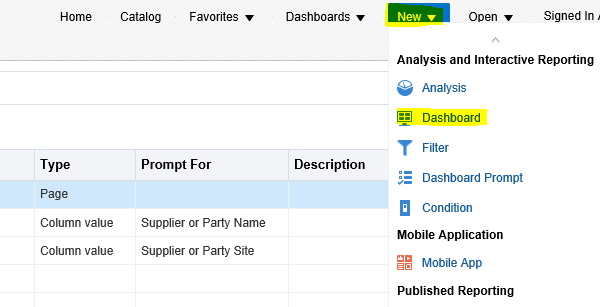
 
Oracle dashboard tutorial
 
 
Step20:- Give the name of Dashboard and Location
Dashboard Name: XX_SUPPLIER_INFORMATION_DASHBOARD
Click Ok.
Dashboard prompt presentation variable
 
 
Step21:- This is Dashboard Creation Screen will be appear after that. Here we will Design our Dashboard as per our requirement.
oracle dashboard examples
 

Step22:- Designing Dashboards in Fusion

Drag Column from Dashboard Objects to the Designing part.
We will drag Column two times from the Dashboard Object then you can see in the Right side up and down two Column 1 and Column 2 page parts created in a Single Dashboard Page.
 
You can create multiple Parts of this Dashboard page by dragging Column in the right side but for now we have use two Column in the designing area.One for Dashboard Prompt and One for OTBI report.
oracle dashboard examples


Step22:- Now Under Catalog Option go to that path where you have saved the Dashboard Prompt and OTBI report which is created earlier in this post.
 
oracle dashboard tutorial
 
 
Step23:- Now Drag the  Dashboard Prompt 'XX_SUPPLIER_PROMPT' From Catalog folder to Column 1
 Drag the OTBI REPORT 'XX_SUPPLIER_INVOICE' From Catalog folder to Column 2
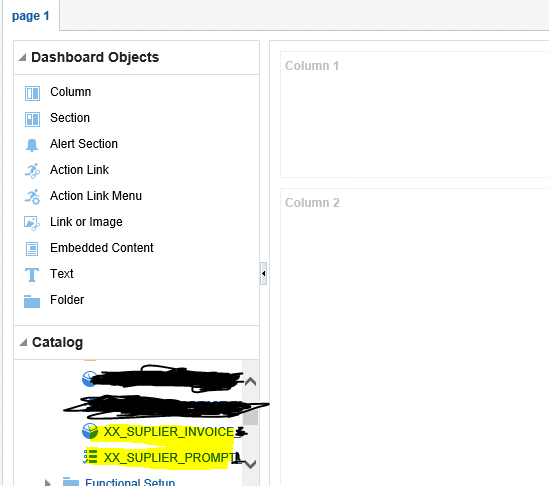
 
otbi tutorial


Part2 How to Create Dashboards in Oracle Fusion
 
 
Step24:- We can also create a new page in the Dashboard as below
 
otbi tutorial
 
 
Step25:- Now run the Dashboard with final changes as below
Oracle dashboard tutorial.How to Create Dashboards in Oracle Fusion


Part2 How to Create Dashboards in Oracle Fusion

Saturday, 3 March 2018

Oracle dashboard tutorial .How to Create Dashboards in Oracle Fusion


How to Create Dashboards in Oracle Fusion

Hi Friends, in this post we will discuss about otbi dashboard.We will learn how we can create Dashboards in Oracle Fusion in this post. We can run multiple reports from the dashboard itself. We can create a Dashboard to our Important Work or Activity which help us to do Monitoring kind of Jobs and help us to make more request discussion making capabilities. We all know that we can represent the Data in Graphical form through OTBI , but if you can see this graphical and analysis data directly through Dashboards. Here below you will find dashboard examples.
 
Dashboard is the Combination of Multiple Reporting options in a single screen and we can see multiple reports in a single screen through Dashboards. I will show how we can create Dashboards in Fusion.
 

Oracle Dashboard examples:-

 
Step1: I will create First OTBI report and then I will run this report from this new created Dashboard.
 
Step 2:-
Go to Oracle fusion Application and Then go to Navigator. Select Report and analytics.
How to Create Dashboards in Oracle Fusion
 

Step2:-

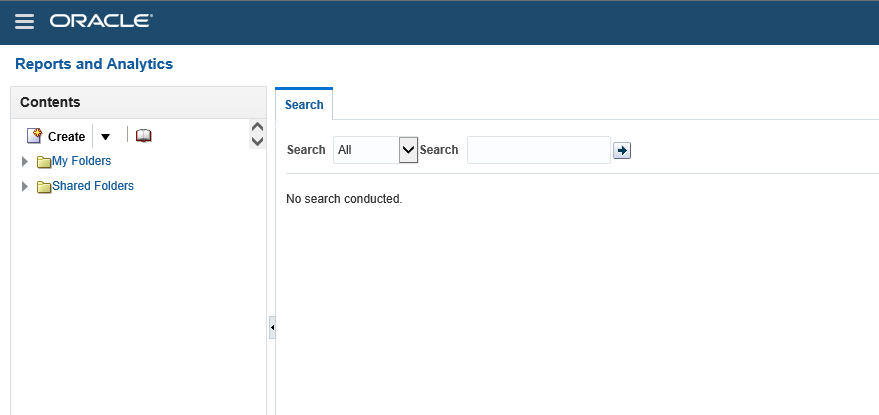
This below will appear after the Reports and Analytics as below.
 
How to Create Dashboards in Oracle Fusion
 

My Folders

 
 My Folders' is your own folder. It means it is specific to each user. when you will create your report under this folder then no one in the application can see and access these reports because these are saved and created under your My folder. so this is totally yours personal Development.


Shared Folders

Shared Folders is your Application common Folder. It means it is shared across users of the application as per the roles. Shared folders has many Sub-folders related to the Work related and Module Related.


Step3:-

Click on browse Catalog as below.


Step4:-

Now click on the Home Icon as below and this will navigate to Home Screen.
 
How to Create Dashboards in Oracle Fusion


Step5:-

Now click on Analysis as below.
 
OTBI AND Dashboards in Oracle Fusion


Step6:-
In this example I am going to Create Analysis on Supplier Invoices for that I will select Payables Invoices Subject Area. 

OTBI AND Dashboards in Oracle Fusion
 

Step7:-

This is the Development window of OTBI reports.

Selected columns:

'Selected columns' represents Columns which you want to include in your Report output.
 

Filters:

Filters represents where conditions in this OTBI report.
 
You will drop the Columns from the subject areas in the left side.
 
You can see in the left side subject area and the sub folders. Each subfolders has information related to AP invoices. Like Accounting folder have accounting information. Invoice Details folder has Invoice number , invoice description kind of information.
 
OTBI AND Dashboards in Oracle Fusion


Oracle dashboard tutorial
 
 
Step8:- I have Drag Invoice Number and Invoice Amount ,Supplier and Supplier site from Subject area to the Selected Columns as below.
Then these are the Four columns will come in this report output.
 
oracle dashboard examples
 
 
Step8:- Now Click on the Supplier Column and Select filter Option.
 
otbi dashboard
 
Step9:- Create Supplier column as a Filter type Prompted. It means that Supplier Name will be prompted or work as parameter.
 
dashboard prompt presentation variable
 
 
Step10:-Now Click on the Supplier Column and Select filter Option.
oracle dashboard tutorial


Step11:-Create Supplier Site column as a Filter type Prompted. It means that Supplier Site will be prompted or work as parameter
 

 Dashboard prompt presentation Variable

 
Step12:- We can see below these two filters created as prompted.


Step13:- Save the report under this below path.
Report Path:-  /Shared Folders/Custom/Financials
Report Name:- XX_SUPLIER_INVOICE
 
Step14:- Creating Dashboard Prompts
Now for Creating Dashboard we will first create Dashboard Prompts
 
We are creating Dashboard Prompt for our OTBI report Parameters or we can say OTBI Report prompted parameters in Filter condition.
 
Go to New ==> Dashboard Prompt


Step15:- In Dashboard Prompts , we will select the same subject area as we selected in OTIB report.
Oracle dashboard tutorial .How to Create Dashboards in Oracle Fusion
 
 
Step16:- Click on + sign and select Column prompt option as below.


Step17:- Select the same columns as a Dashboard Prompts which we selected as a column in OTBI reports.
 
Oracle dashboard tutorial .How to Create Dashboards in Oracle Fusion
 
 
Oracle dashboard tutorial .How to Create Dashboards in Oracle Fusion
 
 
Step17:-User Input should be Choice List , if you want to give LOV option to User.
 
For Supplier
 
Oracle dashboard tutorial .How to Create Dashboards in Oracle Fusion


For Supplier Site:-
User Input should be Choice List , if you want to give LOV option to User.
Limit Values by should be your Supplier(First) parameter because site will be dependent on supplier Parameter.
 
Oracle dashboard tutorial .How to Create Dashboards in Oracle Fusion
 
 
You will find the rest of the steps in the Second part of this post in this below url
 
Part2:-
 
How to Create Dashboards in Oracle Fusion

Monday, 26 February 2018

Part2 OTBI Reports in Oracle Fusion.How to Create OTBI Reports in Oracle Fusion

OTBI Reports in Oracle Fusion. How to Create OTBI Reports in Oracle Fusion

This is the second post of OTBI Reports in Oracle Fusion. How to Create OTBI Reports in Oracle Fusion. In this first post , I have shared you all the steps to create OTBI reports and now in this post we will start from create filters and where condition in OTBI reports.
 
I will recommend to go to the first post , If you want to start this second post.


How to Create OTBI Reports in Oracle Fusion.OTBI user guide

Step10:-

Creating Filters in OTBI report
 
Click on below icon under filters tab as below.
 
How to Create OTBI Reports in Oracle Fusion


 Step11:-

Oracle otbi documentation

 
Click on Filters and More columns as below.
How to Create OTBI Reports in Oracle Fusion

Step12:-

Oracle OTBI documentation

 
 You can put filters on any columns as per the columns available in the Payables Invoice subject area sub-folder. In this example I will put where condition on Business unit. So I will choose Business unit sub-folder as below.
 
 
How to Create OTBI Reports in Oracle Fusion.otbi training
How to Create OTBI Reports in Oracle Fusion
 

Step13:-

OTBI reports in oracle fusion

 
Now select the values as it will show you all the distinct value available in the data base for this column.
How to Create OTBI Reports in Oracle Fusion
 
Now you can see below OTBI reports filters as below.
 
How to Create OTBI Reports in Oracle Fusion
 
 
Step14:- Suppose , you want to show only top 10 invoices in your OTBI reports for this how you put condition in this OTBI report.
For that you have to click on Filters again , when you will click on filters first you will always see the columns of your OTBI reports , so now you want to see top 10 invoices amount do in this filter you will select Invoice amount column.
otbi reports in oracle fusion
 
Step15:- Select below condition for your Invoice Amount column.
 
otbi reports in oracle fusion
 
Step16:- Now your OTBI Reports filters will be two as below.
oracle otbi documentation
 
 
Step17:- Now click on Results tab to see the output.
 
Part2 OTBI Reports in Oracle Fusion.How to Create OTBI Reports in Oracle Fusion


OTBI Reports in Oracle Fusion. How to Create OTBI Reports in Oracle Fusion

How to create OTBI Reports.OTBI REPORTS IN ORACLE FUSION

How to create OTBI Reports. OTBI REPORTS IN ORACLE FUSION

OTBI is a new reporting feature in Oracle Fusion. OTBI is a Oracle Transactional Business Intelligence reporting tool. Its provide you real time and Self-service reporting solution in Fusion. Self-Service means that , business users can design their own reports based on their needs. OTBI in oracle fusion gives business solution to create real time analyses that support decision-makings. In OTBI , fusion has already given the predefined views which fetch different -different data from Oracle Applications. Users just need to select the appropriate view/Subject area on which they wants to Design the OTBI reports.
Business users with appropriate roles can use Oracle Fusion Transactional Business Intelligence to create analyses that support decision-making. Business users can perform current-state analysis of their business applications using a variety of tools. These include Oracle Business Intelligence Enterprise Edition (Oracle BI EE) as the standard query and reporting tool, Oracle Business Intelligence Answers (Oracle BI Answers), and Oracle Business Intelligence Dashboard end-user tools.
I have already explained the OTBI Subject folder and My Folder in Details in my last post. You can refer these posts to get those details from Folder in OTBI.
 

OTBI REPORTS IN ORACLE FUSION DETAIL DECRIPTION


OTBI Reports Security:-

In this , we will discuss how we can implement security in OTBI reports which will prevent to run and create reports in Oracle fusion , as per the rights and responsibility of the business users. It means we can control the subject areas/views of OTBI and also the OTBI reports as per the responsibility levels and roles level in Fusion. We will discuss in details these security details.

Subject Area:-

 Subject areas are functionally secured using duty roles. The names of duty roles that grant access to subject areas include the words Transaction Analysis Duty (for example, Workforce Transaction Analysis Duty).

OTBI REPORTS IN ORACLE FUSION
This table identifies the subject areas that predefined HCM job roles can access.

Job Role

Subject Areas
Payroll Manager
All Payroll

Business Intelligence Catalog Folders:-

Business Intelligence Catalog Folders secured like the same as like Subject areas. One can access these folders as per their duty roles.
A user who inherits the Payroll Manager Duty can access both the All Payroll folder in the Business Intelligence Catalog and the All Payroll  subject areas.

Business Intelligence Reports

Analyses are secured based on the folders in which they're stored. If you haven't secured Business Intelligence reports using the report privileges, then they're secured at the folder level by default. You can set permissions against folders and reports for Application Roles, Catalog Groups, or Users.
You can set permissions to:
  • Read, Execute, Write, or Delete
  • Change Permissions
  • Set Ownership
  • Run Publisher Report
  • Schedule Publisher Report
  • View Publisher Output

I have discussed Reports security in Details in my recent Post Security in OTBI


OTBI REPORTS IN ORACLE FUSION

Contact us for any Collaboration, Project Support & On Job Support Work

Name

Email *

Message *