Showing posts with label ORACLE FUSION. Show all posts

Tuesday, 20 March 2018

Payables to General Ledger AP GL Reconciliation Process in Oracle Fusion

Payables to General Ledger AP GL Reconciliation Process in Oracle Fusion

 
In this post , we will discuss Payables(AP) and General Ledger(GL)  reconciliation in Oracle Fusion. We do reconciliation in Oracle applications to Match the Transactions between Sub-ledger and General ledger. In EBS , We need to do lot of efforts in AP and GL reconciliation to run many reports and then find the difference between AP and GL account. Some time we need to put lot of efforts to find the missing transactions between AP and GL.
 
Oracle fusion has made the reconciliation process so simple we don't need to run the many reports in Payables and General ledger and find the difference between them and then find the missing transactions. Oracle fusion has provided very simple process to do the reconciliation between sub-ledger and general ledger and we can easily find the missing transactions between the difference between AP and GL. This is really an great feature in Oracle fusion application.
 

Payables to General Ledger AP GL Reconciliation Process in Oracle Fusion

Step1:- Receivables and General Ledger AP GL Reconciliation in Oracle fusion
Log into Oracle Fusion Applications
Navigator-->Tools-->Schedule Process
 
Payables to General Ledger AP GL Reconciliation Process in Oracle Fusion


Step2:- Step2:- Submit 'Prepare Payables to General Ledger Reconciliation'
 

This program extracts and prepares transaction and accounting information for reconciling Payables to the General Ledger.
 
We need to run this process before start the process of Payables to General Ledger Reconciliation.
Verify the process and sub-processes end with Status ‘Succeeded’
 
Payables to General Ledger AP GL Reconciliation Process in Oracle Fusion
 
Write down the process ID and Request Name highlighted below for the Prepare Payables to General Ledger Reconciliation because we need this name and id in further reconciliation report.
 
Payables to General Ledger AP GL Reconciliation Process in Oracle Fusion


Step3:- Run the Payables to General Ledger Reconciliation Report

Navigator > Payables  > Invoices
 
Payables to General Ledger AP GL Reconciliation Process in Oracle Fusion


 From the Task List: Accounting > Payables to Ledger Reconciliation
Payables to General Ledger AP GL Reconciliation Process in Oracle Fusion
Step4:- Review the Summary Reconciliation Results
 
 For any row that represents period activity (like Invoices, Payments, Prepayments), you can click on the Payables or Accounting Amount, to display the detail of such activity.


Payables to General Ledger AP GL Reconciliation Process in Oracle Fusion
 

Sunday, 18 March 2018

How to Apply Invoice Hold In Oracle Fusion

How to Apply Invoice Hold In Oracle Fusion

 
Oracle Fusion has Provided the Invoice Hold option to stop the Invoices to make the Payment in Oracle Fusion. We can apply Hold to any Invoice for which we want to stop the Payment. Invoice Hold Invoices did not come to Payments Workbench or we can say not eligible for the Payments. First We need to release the Hold of the Payment then we can do the Payment. Let's start in Oracle Fusion, how we can apply Invoice Hold.
 
 
When we apply the Invoice Hold , then we can also specify the Hold reason why we are putting the Hold to this Invoice.
 

How to Apply Invoice Hold In Oracle Fusion

Step1:- Manage Invoice Hold

 
Manage Invoice : Navigator > Payables> Invoices > Manage Invoice
 
How to Apply Invoice Hold In Oracle Fusion
 
How to Apply Invoice Hold In Oracle Fusion


Step2:- Search for any validated invoice you previously created. Provide the Invoice Number or Supplier name in the Search fields  
Click on Search
 
How to Apply Invoice Hold In Oracle Fusion
 
 
In the Search Results region, click in Invoice Number Link
 
Step3:- Now Invoice Page Will be Open. Go Down in the Invoice Detail Page. Under Holds and Approvals Tab Click on the '+' Icon to apply the Hold to the Invoice.
 
How to Apply Invoice Hold In Oracle Fusion


Step4:- Select Hold Reason

Select the Invoice Hold Name and the Reason Detail for the Invoice Hold.
 
How to Apply Invoice Hold In Oracle Fusion


Step5:- Select the Invoice Hold Name and the Reason Detail for the Invoice Hold.
 
How to Apply Invoice Hold In Oracle Fusion
 
 
How to Apply Invoice Hold In Oracle Fusion

Wednesday, 7 March 2018

Receivables and General Ledger AR GL Reconciliation in Oracle fusion

Receivables and General Ledger AR GL Reconciliation in Oracle fusion

In this post , we will discuss Receivables(AR) and General Ledger(GL)  reconciliation in Oracle Fusion. We do reconciliation in Oracle applications to Match the Transactions between Subledger and General ledger. In EBS , We need to do lot of efforts in AR and GL reconciliation to run many reports and then find the difference between AR and GL account. Some time we need to put lot of efforts to find the missing transactions between AR and GL.
 
Oracle fusion has made the reconciliation process so simple we don't need to run the many reports in Receivables and General ledger and find the difference between them and then find the missing transactions. Oracle fusion has provided very simple process to do the reconciliation between sub-ledger and general ledger and we can easily find the missing transactions between the difference between AR and GL. This is really an great feature in Oracle fusion application.


Step1:- Receivables and General Ledger AR GL Reconciliation in Oracle fusion

Log into Oracle Fusion Applications
Navigator-->Tools-->Schedule Process


Step2:- Submit 'Prepare Receivables to General Ledger Reconciliation'
 

This program extracts and prepares transaction and accounting information for reconciling Receivables to the General Ledger.
 
We need to run this process before start the process of Receivables to General Ledger Reconciliation.
Verify the process and sub-processes end with Status ‘Succeeded’


Receivables and General Ledger AR GL Reconciliation in Oracle fusion
 
 
- Write down the process ID and Request Name highlighted below for the Prepare Receivables to General Ledger Reconciliation because we need this name and id in further reconciliation report.
 
Receivables and General Ledger AR GL Reconciliation in Oracle fusion
 
Receivables and General Ledger AR GL Reconciliation in Oracle fusion


Step3:- Run the Receivables to General Ledger Reconciliation Report.

Navigator > Receivables  > Account Receivables
From the Task List: Accounting > Receivables to Ledger Reconciliation


Receivables and General Ledger AR GL Reconciliation in Oracle fusion


Step4:- Review the Summary Reconciliation Results

For any row that represents period activity (like Invoices, Adjustments, Applied Receipts), We can easily find the differences and missing invoices just click on the Difference amount in this report.
 
 
Receivables and General Ledger AR GL Reconciliation in Oracle fusion
 

Thursday, 8 February 2018

Part1 : Customer Import in Oracle Fusion Through FBDI


Part1 :Customer Import in Oracle Fusion Through FBDI


Hi Friends, in this post ,we will try to Import Customers in Oracle Fusion Through FBDI.

This Topic is split in two parts. This is the first Part.

Part1:- https://rpforacle.blogspot.in/2018/02/customer-import-in-oracle-fusion-through-fbdi.html

Part2:- https://rpforacle.blogspot.in/2018/02/part2-customer-import-in-oracle-fusion-through-fbdi.html


Step1:- Go to Oracle Repository to Download FBDI Data Templates


Step2:- Download the Customer Data Template as below.


Step3:- Go to Oracle Fusion responsibility and go to Data Import Roles.

 
Step4:- Now click on 'Create Data Import Batch ' as below


if you found this post helpful and you liked it then follow this blog to get notifications for the upcoming posts.

Step5:- Enter the Batch Details as below.

Step6:- When you will save the Data Import batch then it will create Batch Id as below.

You have to copy this Batch id and put this Batch id Customer Data Template for All Records.
 By that way this batch will identify the records to be imported through Data Template.


Step7:- Now Copy that Batch id Data Template as below.


Step8:- Now click the ZIP file as below.


Step9:- This is the ZIP File Created.


 Got to the second part to see the rest of the steps

Part2:- https://rpforacle.blogspot.in/2018/02/part2-customer-import-in-oracle-fusion-through-fbdi.html

Oracle Fusion FBDI : AR Auto Invoice Import


Oracle Fusion FBDI : AR Auto Invoice Import


Hi Friends , in this post We will try to Import AR Invoices in Oracle Fusion Through FBDI.
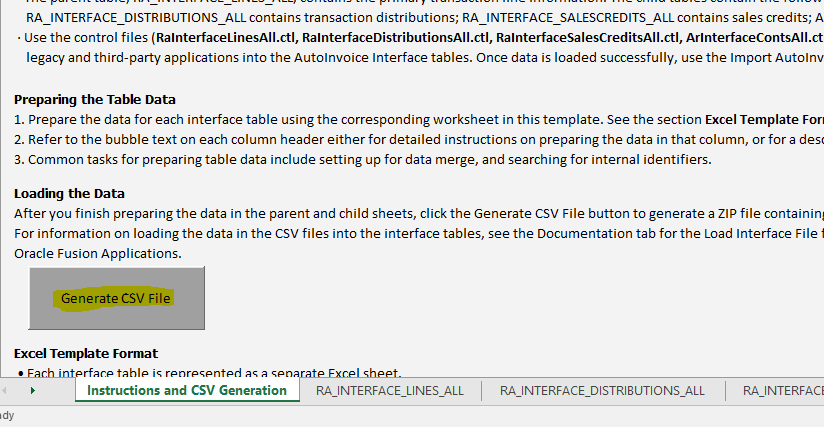
Step1:- Go to Oracle Repository to Download FBDI Data Templates


Step2:- Enter the Data in Data Template. Please be sure , your Transaction Batch Source Name should be created in the System


Step3:- Then click on the First tab of This Data Template and Click on 'Generate CSV File'


Step4:- This is the Zip file created from this Data Template.


Step5:- Go to Oracle Fusion and Then go to Navigator and Click on File Import and Export.


Step6:- Then Upload the ZIP file here below and select the UCM Account.


Step7:- Then go to Navigator again and click on Scheduled Processes.


Step8:- Then Run the Load Interface File Import as below.


Enter Parameters for this Program.
 
 
Step9:- Then Again click on Scheduled New Processes as below and run the second program.


Step10 :- Run the Second ESS job Import auto Invoice.

 
Enter the Job Parameters and Select the BU and Source Accordingly as per the sheet.


Tuesday, 6 February 2018

How to get User Run time system information in Oracle Fusion Reports


How to get User Run time system information in Oracle Fusion Reports


In Oracle Apps R12 reports , we can easily get the user information through Profile option like USER_ID, RESP_ID but in Oracle Fusion to get the user information , we need to use fusion system variables as below

System Variables                    Variables Description
xdo_user_nameUser ID of the user submitting the report. Like Which fusion User running this report
xdo_user_rolesRoles assigned to the user submitting the report. Like from Which role this report is running.
xdo_user_report_oracle_langReport language from the user's account preferences.
xdo_user_report_localeReport locale from the user's account preferences.
xdo_user_ui_oracle_langUser interface language from the user's account preferences.
xdo_user_ui_localeUser interface locale from the user's account preferences.


if you found this post helpful and you liked it then follow this blog to get notifications for the upcoming posts.


To Access these variables in fusion reports you need to user : and then System variable name in your SQL query.

Like

Select  :xdo_user_name
              :xdo_user_roles
From Dual


If you want to see Other OAF Related Posts , Please visit Below URL.https://rpforacle.blogspot.in/2013/03/oaf_10.html


If you want to see  Oracle Fusion Related Posts , Please visit Below URL.

https://rpforacle.blogspot.in/2018/01/oracle-fusion-learning-tutorial.html

If you want to Learn Oracle Workflow Builder, Please visit Below URL.

https://rpforacle.blogspot.in/2018/01/oracle-workflow-learning-tutorial-1.html


Oracle Fusion BIP AND OTBI Report Security Concept


Oracle Fusion BIP AND OTBI Report Security Concept


Hi Friends, In this post , we will discuss about BIP and OTBI reports security concept. How we can implement security in these reports so that we can control the access of these reports and their data to Business users in Oracle Fusion.

Subject Area :-

In Fusion , Our BIP and OTBI reports creates in the Standard Subject area folder given by Oracle fusion. In OTBI , we can also use the Standard Subject areas to create our Analysis reports. But how we can control the access of these subject areas in Fusion, like which subject area user can access and which cannot.

Subject areas are functionally secured using duty roles. The names of duty roles that grant access to subject areas include the words Transaction Analysis Duty. so by that way we can control which the access of subject area in fusion BIP and OTBI reports.

BIP and OTBI Report Security:- When you creates OTBI and BIP report you can also set permission to these report by right click on these reports. You can control the access of these reports by setting permission like which Role or Which user can access these reports. 

If you have not set permission then reports are secured based on the folders in which they're stored.

You can set permissions to Reports:

  • Read, Execute, Write, or Delete
  • Change Permissions
  • Set Ownership
  • Run Publisher Report
  • Schedule Publisher Report
  • View Publisher Output

Complete Tax Setups in Oracle Fusion


Reporting Data Duty Roles
 
The data that's returned in Oracle Fusion Transactional Business Intelligence (OTBI) reports can also be secured by Data Duty Roles.
 
Each of the Transaction Analysis Duty roles that grants access to subject areas and Business Intelligence Catalog (BI Catalog) folders inherits one or more Reporting Data Duty roles. These duty roles grant access to the data.

if you found this post helpful and you liked it then follow this blog to get notifications for the upcoming posts.

BI Roles For BIP and OTBI reports


BI roles uses for both BIP and OTBI reports. They grant access to Business Intelligence functionality, such as the ability to run or author reports

BI Consumer RoleRuns Business Intelligence reports.
BI Author RoleCreates and edits reports.
BI Administrator RolePerforms administrative tasks such as creating and editing dashboards and modifying security permissions for reports, folders, and so on.
BI Publisher Data Model Developer RoleCreates and edits Oracle Business Intelligence Publisher data models.


If you Want to Learn Oracle Fusion , Please Follow the Oracle Fusion Tutorial 

Creating Value Set in Oracle Fusion

Creating Value Set in Oracle Fusion

In this post , we will discuss about Value Set. We all know that Value is used in Oracle application to get user inputs in Reports and DFF and provide list of value options to select. I will describe complete steps of creating Value Set in Oracle Fusion


To Create Value set in Oracle Fusion , you have to follow Below Steps:

Step1:- Go to Setup and Maintenance Role.

Step2:- Find Manage Value Set as below

Creating Value Set in Oracle Fusion

Step3:- Create Value Set as Click on + sign

Creating Value Set in Oracle Fusion


Step4:-

Creating Value Set in Oracle Fusion


If you want to see Other OAF Related Posts , Please visit Below URL.https://rpforacle.blogspot.in/2013/03/oaf_10.html


If you want to see  Oracle Fusion Related Posts , Please visit Below URL.

https://rpforacle.blogspot.in/2018/01/oracle-fusion-learning-tutorial.html

If you want to Learn Oracle Workflow Builder, Please visit Below URL.

https://rpforacle.blogspot.in/2018/01/oracle-workflow-learning-tutorial-1.html


Creating Value Set in Oracle Fusion

Monday, 5 February 2018

How to find the Descriptive Flex Fields Exists in Oracle Fusion web Pages


How to find the Descriptive Flex Fields Exists in Oracle Fusion web Pages


Hi Friends, In this post I will show you , how we can find the descriptive flex fields existing in Oracle fusion web pages so that we can configure this as per our requirement.

In Oracle EBS , We normally find the Descriptive Flex Fields in Oracle Form through Help ==> Examine Option and then we get the names of available flex fields existing for that form and then we copy the name of DFF and go the Application Developer responsibility to configure that Descriptive flex fields in that Form.

But in Oracle Fusion , we did not have this kind of process flow. Oracle fusion has given a very easy method to find and configure the DFF in Fusion Web pages.

In Below Example , I am taking the Example of Customer Creation Web page in Oracle Fusion As below. This is the Customer Creation Page and I want to find the all Descriptive flex Field available in this Web-page.


We have to go to Top right hand side of this web- Page and there you can see your login name and there you will see drop down option beside your login name.
you have to click this option as below. click on Highlight FlexFields option.


You can see below highlighted , this option has displayed all the available DFF in Customer Web- Page.


Sunday, 4 February 2018

How To Create List of Value (LOV) to ESS Job Parameter in Oracle Fusion


How To Create List of Value (LOV) to ESS Job Parameter in Oracle Fusion

Hi Friends, in this post we will create LOV in Oracle Fusion for Concurrent Programs/ESS jobs. We all know that , concurrent program is now changed to ESS jobs in Oracle Fusion and we cannot create Table type LOV in Fusion so there is another way to achieve this requirement that I will share step by step.


Step1:- Go to Setup and Maintenance.

 
Step2:- Go to Manage Common Lookups.
 
 
Step3:- Create Lookup Type and Give Values as Below


Step4:-  Now We will go to Manage Custom ESS Job Roles as per module


if you found this post helpful and you liked it then follow this blog to get notifications for the upcoming posts.
 
Step5:-
 List of Value Source Definition :- oracle.apps.fnd.applcore.lookups.model.publicView.CommonLookupPVO


Step6:- Now we will go to ESS Job Registration and Create Parameter and assign LOV.


Step7:-


Step8:- Now We Create Dependencies as below

Here We will give the Name of Lookup type in Default Value as below.


How To Create List of Value (LOV) to ESS Job Parameter in Oracle Fusion


If you Want to Learn Oracle Fusion , Please Follow the Oracle Fusion Tutorial 

Contact us for any Collaboration, Project Support & On Job Support Work

Name

Email *

Message *